
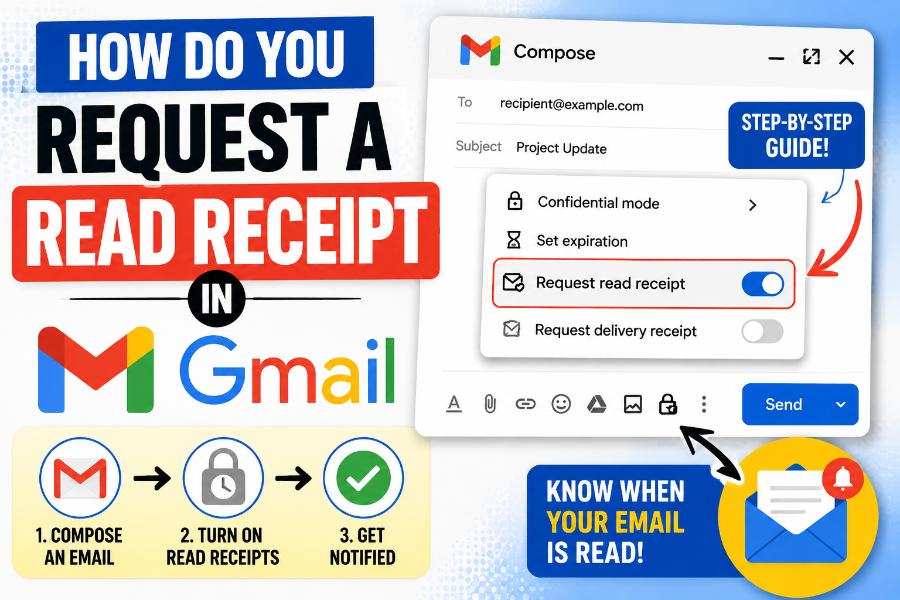
How do you request a read receipt in Gmail? If you use an eligible Google Workspace work or school account, open Gmail on a computer, compose the message, select the three-dot More options menu at the bottom-right of the compose window, choose Request read receipt, and send the email. The recipient may need to approve the request before Gmail sends a receipt back to you.
The most important limitation is account eligibility. Google’s official Gmail Help page states that read receipts are available only for work or school accounts and do not work with personal addresses ending in @gmail.com. Even within Google Workspace, an administrator must allow the feature, and the recipient’s email system or organizational policy can prevent a receipt from being returned.
A Gmail read receipt can show that a message was opened or marked as read, but it is not guaranteed proof that the recipient carefully read or understood the email. This guide explains the complete process, administrator requirements, reasons the option may be missing, recipient behavior, accuracy limits, and practical alternatives.
What Is a Gmail Read Receipt?
A read receipt is an email notification that may tell the sender when a recipient opened a message. Google’s help documentation says the receipt can include the time and date when the message was opened.
The feature is designed mainly for managed organizations, such as businesses, schools, and institutions using Google Workspace. It is not a standard feature in free personal Gmail accounts. Workspace administrators can control whether users are allowed to request receipts and which recipients are eligible.
Read receipts should not be confused with delivery confirmations. A message can reach a recipient’s mailbox without being opened. Gmail’s native read-receipt feature focuses on opening or read status, but the behavior depends on the receiving mail system.
How Do You Request a Read Receipt in Gmail?
For an eligible work or school account, follow these steps on a computer:
- Open Gmail in a web browser.
- Select Compose.
- Add the recipient, subject, and message.
- At the bottom-right of the compose window, select More options, represented by three vertical dots.
- Select Request read receipt.
- Select Send.
The request is attached to that message. If the recipient’s system supports the feature and the request is approved or automatically processed, a receipt may arrive in your Inbox.
Google’s instructions specifically direct users to perform this action on a computer. The native option may not appear in the same way in Gmail mobile apps.
Which Gmail Accounts Support Read Receipts?
Google states that read receipts are available only for work or school accounts. This usually means an account managed through Google Workspace, such as employee@company.com or student@school.edu.
Personal Gmail accounts ending in @gmail.com do not have Google’s native Request read receipt command. Paying for additional personal storage through Google One does not automatically convert a personal Gmail address into an eligible Workspace account.
Even with Google Workspace, the feature may depend on the organization’s edition and administrator configuration. The administrator can allow receipts only within the organization, allow them for selected external addresses, or disable them.
Why Is “Request Read Receipt” Missing in Gmail?
The option is commonly missing for one of these reasons:
- You are using a personal @gmail.com account
- Your Google Workspace administrator has not enabled read receipts
- The administrator allows receipts only for certain users or recipients
- You are using the Gmail mobile app instead of the desktop web interface
- The compose window is in a layout where More options is not immediately visible
- You are signed into the wrong Google account
- An organizational policy or account edition does not support the setting
First, check the email address shown in the top-right account menu. If it ends in @gmail.com, Google’s native read receipt option will not be available. If it is a company or school account, contact the administrator and ask whether Gmail read receipts are enabled for your organizational unit.
What the Google Workspace Administrator Must Enable
The sender cannot usually enable the organization-wide feature alone. A Google Workspace administrator controls it in the Admin console.
The settings can determine whether users may request receipts and whether receipts can be sent to recipients inside or outside the organization. Administrators may restrict external destinations to reduce privacy or information-security risks.
After an administrator changes a setting, it may take time for the option to appear across accounts. Users should sign out and back in, refresh Gmail, and confirm that they are composing from the correct managed address.
If the organization deliberately disables receipts, users should follow the approved communication workflow rather than installing unapproved tracking tools.
What Happens After You Send the Request?
The recipient’s system decides how to handle it. Google’s Gmail Help explains that a recipient may need to approve the receipt before it is sent back. When approval is required, Gmail can display a message saying that the sender requested a read receipt.
The recipient may choose Send receipts to return the confirmation immediately or Not now to postpone the decision. Google notes that the recipient may be asked again the next time the message is opened. In some organizational configurations, the receipt is sent automatically without displaying a prompt.
If a receipt is returned, it arrives as an email in the sender’s Inbox. The notification may identify the original message and show when it was opened.
How to Return a Read Receipt in Gmail
When a work or school account receives a message requesting a read receipt, Gmail may display a prompt. The recipient can:
- Select Send receipts to approve the request
- Select Not now to postpone it
If no prompt appears, the organization may have configured receipts to be sent automatically, or the request may not be supported for that message.
Recipients should follow their organization’s privacy and communication policies. Some companies restrict external receipts because they can reveal working patterns or confirm that a mailbox is active.
When Gmail Read Receipts Are Not Returned
Google lists several situations where a receipt may not be returned. These include messages sent to group mailing lists or aliases, administrator restrictions, and email clients that do not synchronize in real time.
Other common reasons include:
- The recipient refuses the request
- The recipient’s organization blocks external receipts
- The recipient uses a mail client that does not support the request
- The message is accessed through POP or another delayed-sync setup
- The email is marked as read without being opened in the usual way
- The message is forwarded to a different recipient
- The account is an alias, group address, shared inbox, or automated mailbox
- A security gateway changes message headers
- The receipt is delayed, filtered, or placed in another folder
A missing receipt does not prove that the message was unread. It only means the sender did not receive a supported confirmation.
Are Gmail Read Receipts Accurate?
Read receipts are useful signals, but Google advises users not to rely on them to certify delivery or reading. The behavior depends on the recipient’s email system.
A receipt may be triggered when a message is marked as read, even if the person did not open and study it. Preview panes, synchronization, mobile notifications, delegated mailboxes, and automated workflows can affect status. Conversely, a person may read the message in a client that never returns a receipt.
Therefore, a receipt does not prove comprehension, agreement, identity, or action. It is not a substitute for a reply, electronic signature, delivery service, ticket status, or other formal confirmation.
Can Personal Gmail Users Request a Read Receipt?
Not through Gmail’s native feature. Google’s official help page says read receipts do not work with personal @gmail.com accounts.
Personal users sometimes turn to browser extensions or email-marketing platforms that use tracking pixels or tracked links. These tools operate differently from Gmail’s native receipt system. They may be blocked by image-proxying, privacy features, ad blockers, security software, or recipients who do not load images. They can also raise privacy, consent, workplace-policy, and data-protection concerns.
For ordinary personal communication, the most transparent alternative is to ask for a reply. Add a sentence such as, “Please confirm receipt when you have a moment.” For scheduling, use a calendar invitation. For document approval, use an e-signature or collaboration platform designed to record actions.
Gmail Read Receipt vs. Email Tracking
A native Gmail read receipt is a standards-based request managed by the sender’s and recipient’s mail systems. The recipient may be asked to approve it, and an administrator can regulate it.
Email tracking tools often insert a tiny remote image or tracked link. When the message loads the image, the tracking service records an event. This may estimate an open, but it can also produce false signals when security scanners or image proxies access the content. It may miss opens when images are blocked.
The two methods should not be treated as equivalent. Native receipts are more explicit but limited in availability. Tracking pixels may be available to more senders but can be less transparent and less reliable.
Best Practices for Requesting Read Receipts
Use the feature selectively. A receipt request is more appropriate for a time-sensitive business message, deadline update, critical operational notice, or document that genuinely needs confirmation.
Write a clear subject line. Explain the requested action near the beginning of the email. Include a specific deadline when relevant. Even when requesting a receipt, ask for a human response if the matter is important.
For example:
“Please reply by July 15 to confirm that you received the revised project schedule and can meet the new delivery date.”
This provides a stronger record than relying only on an automated open notification.
Avoid attaching read-receipt requests to every routine message. Repeated prompts may frustrate recipients, reduce cooperation, and create unnecessary inbox traffic.
Privacy and Workplace Considerations
Read receipts disclose information about when an email was opened. That can reveal work schedules, time zones, account activity, or the presence of a monitored mailbox. For this reason, organizations may restrict external receipts.
Employees should follow company policy before using native receipts or third-party tracking. Administrators should consider security, privacy, legal, and operational requirements when configuring the feature.
Senders should be transparent about the need for confirmation. For sensitive, legal, medical, financial, or regulated communications, use an approved system rather than assuming a read receipt satisfies formal-notice requirements.
Troubleshooting Gmail Read Receipts
If the option is missing or no receipt arrives, work through this checklist:
- Confirm that you are using a work or school account, not personal Gmail.
- Open Gmail on a desktop computer.
- Start a new message and open the three-dot More options menu.
- Ask the Workspace administrator whether receipts are enabled.
- Confirm whether external recipients are allowed.
- Send a test to another account within the same organization.
- Check Inbox, Spam, and filtered folders for the returned notification.
- Remember that the recipient may decline.
- Confirm that the message was not sent to a group or alias.
- Do not treat the absence of a receipt as proof that the email was not read.
An internal test is helpful because it separates organization settings from external compatibility issues. If internal receipts work but external ones do not, the receiving domain may be blocking or ignoring the request.
Better Alternatives for Important Confirmation
A read receipt may be enough for a low-risk informational email, but important workflows often need stronger confirmation.
Ask for a direct reply
A short response such as “Received” provides a clear human acknowledgment.
Use a calendar invitation
Meeting invitations show responses such as accepted, tentative, or declined and are better for scheduling.
Use collaborative documents
Google Docs and project-management tools can show comments, assignments, or completed tasks.
Use an e-signature platform
Contracts and formal approvals should use a system that records identity, timestamps, and signatures.
Use a support or ticketing system
Customer service platforms can record delivery, status, assignment, and response history more reliably than an inbox receipt.
Use approved secure-delivery methods
For legal or regulated notices, follow the required delivery process and obtain professional advice where necessary.
Frequently Asked Questions
How do you request a read receipt in Gmail on a phone?
Google’s documented native workflow uses Gmail on a computer. The option may not be available in the Gmail mobile app. Use the desktop web version with an eligible Workspace account.
Why does my work Gmail not show the option?
Your administrator may not have enabled read receipts, may have restricted your account, or may allow them only for certain recipients.
Does the recipient know I requested a receipt?
Often, yes. Gmail may ask the recipient to send or postpone the receipt. In some organizations, receipts are returned automatically.
Can a recipient refuse a Gmail read receipt?
Yes, when their system presents an approval prompt. Organizational settings can also block the request.
Does a receipt prove the email was read?
No. Google says not to rely on receipts as certification. The message may be marked as read without being fully reviewed, or it may be read without returning a receipt.
Can I request receipts from people outside my company?
Possibly, if your administrator allows it and the recipient’s system supports it. External organizations may block or ignore the request.
Are read receipts available with Google One?
Google One is a consumer subscription and does not by itself add the native Workspace read-receipt feature to a personal @gmail.com account.
Final Thoughts
For eligible Google Workspace users, the answer to how do you request a read receipt in Gmail is straightforward: compose the email on a computer, open More options, select Request read receipt, and send. The real complexity lies in eligibility and reliability. Personal Gmail accounts do not support the native feature, administrators control Workspace access, recipients may decline, and some email systems do not return receipts.
Use read receipts as an optional signal rather than proof. For important messages, include a clear action request and ask the recipient to reply. When a communication needs formal, legal, contractual, or auditable confirmation, use a platform designed for that purpose.